Linux Ricing
Table of Contents
- What brings me to the Linux world?
- What brings me to the Linux ricing world?
- i3 setup (December 8, 2022)
- GNOME setup (Edited November 3, 2023)
What brings me to the Linux world?
Growing up not having a chance to get into programming, meanwhile being a keyboard-mouse gamer, made me always be a windows user (pain*) and never think of other choices. Then I got into college for computer science and decided to go with the MacBook Pro since it was the easiest one to configure for a programming rookie. Then got into grad school for robotics. The first time I ever used a Linux machine was in my ROB 550 class, and it was also the first time I ever used ROS. During my first summer in Ann Arbor, I got an internship as a robotics engineer, where I used the Ubuntu machine daily. I am now fully into the Linux world and not looking back again. I still appreciate MacBook’s stability, and I would love to purchase a new one with the M2 chip when I am no longer broke.
What brings me to the Linux ricing world?
From a source I couldn’t remember, I found the r/unixporn, thought the posts there were super cool, but didn’t really think to implement those customizations because I was using the Macbook Pro and was happy with it. Then in my internship, I met Aaron, who is also into Linux ricing, and he introduced me to this world. I returned to the r/unixporn 3 years later and decided to give it a try.
i3 setup (December 8, 2022)
It is not much but it is mine
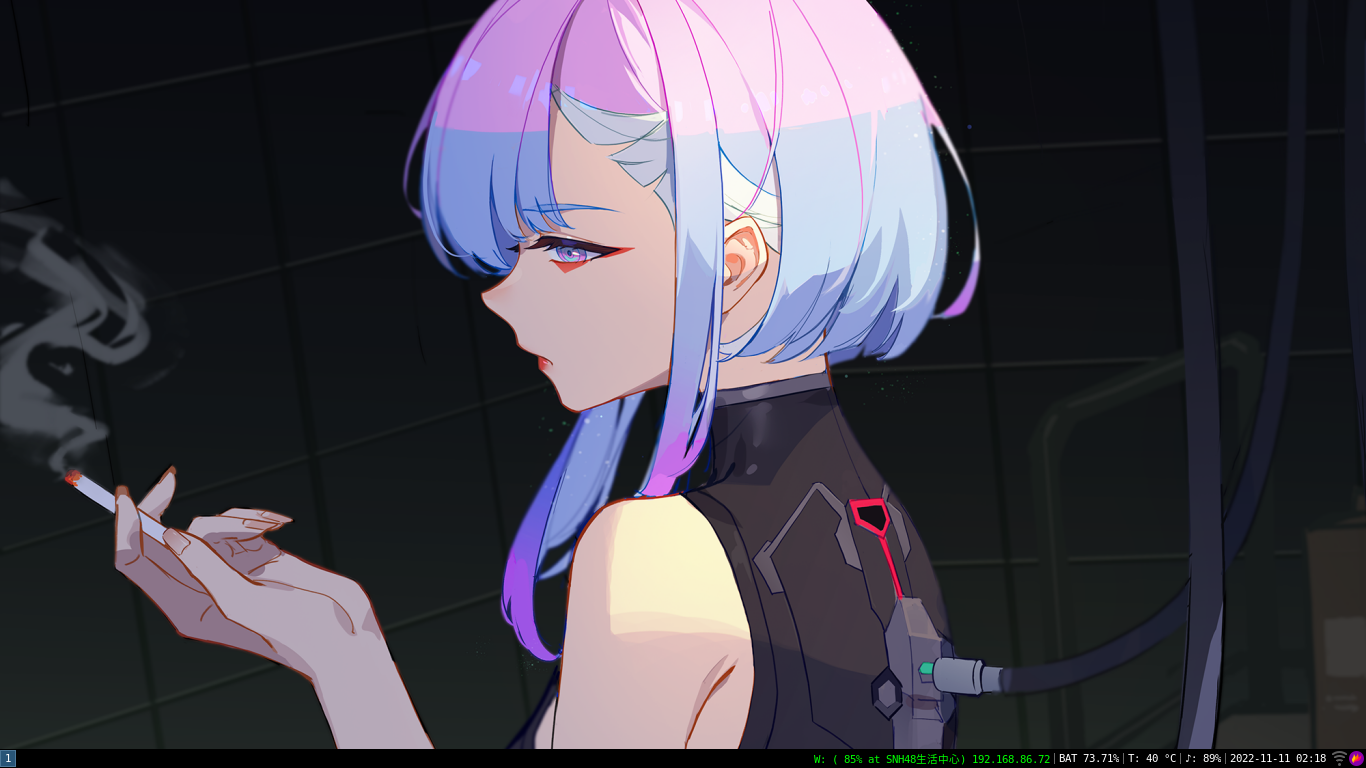
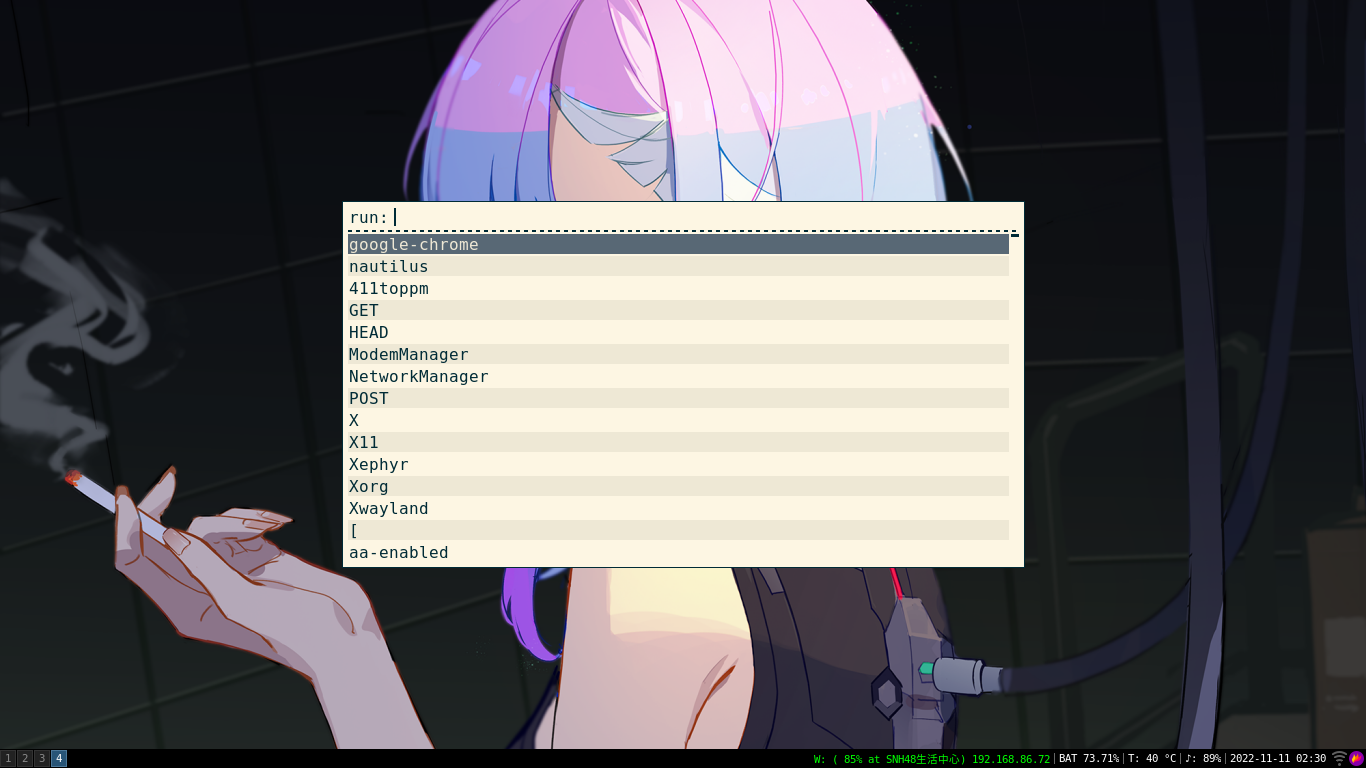
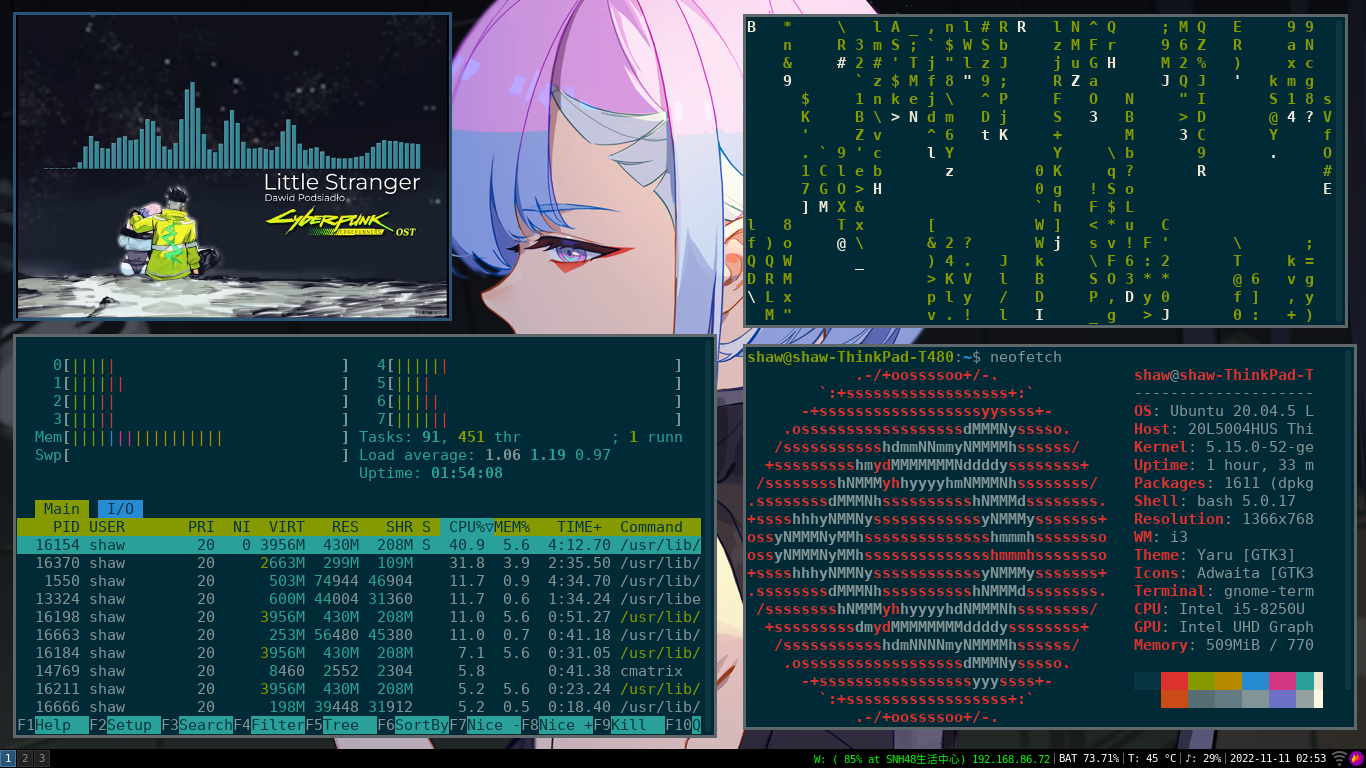

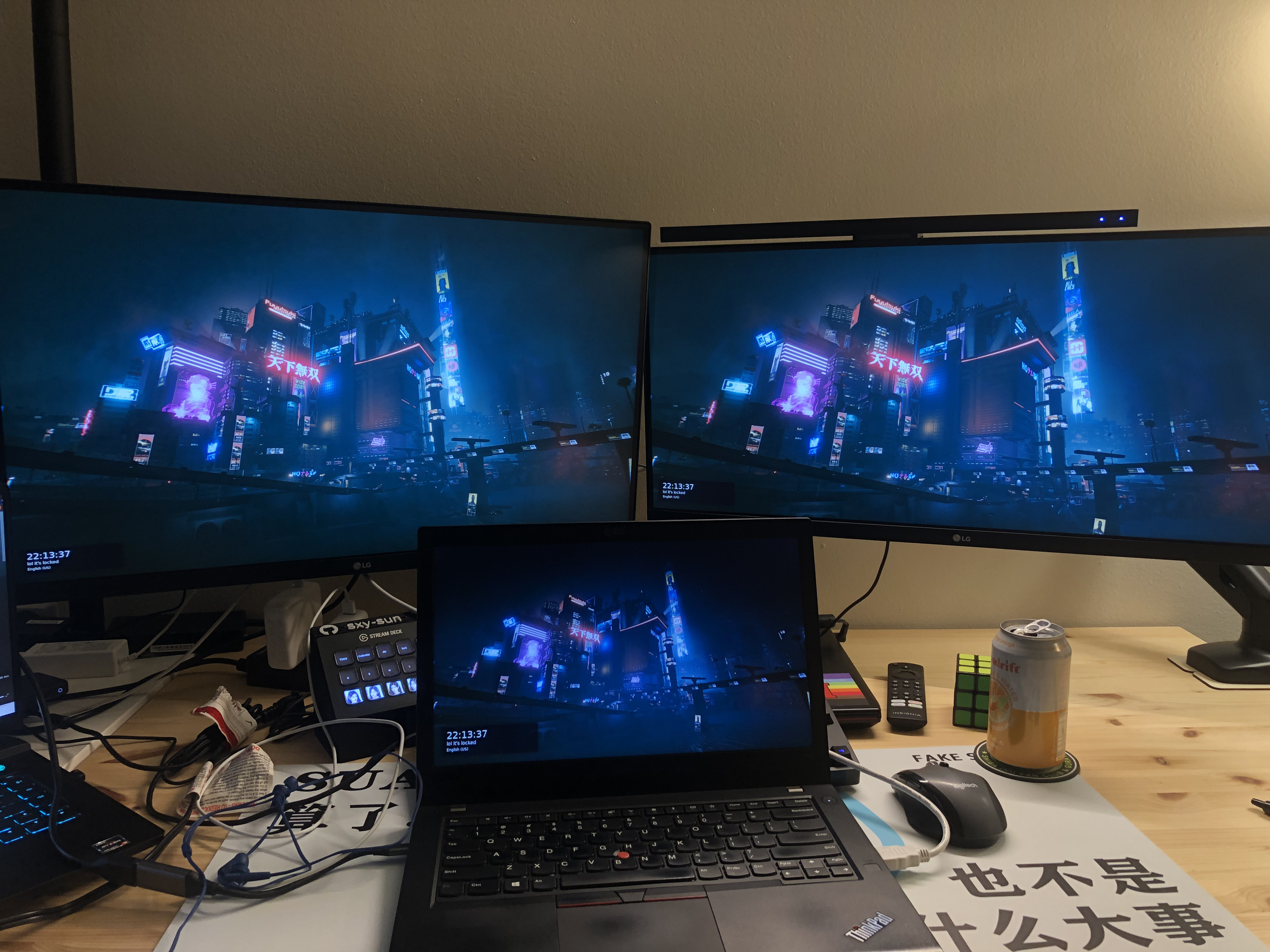
Setup
- Wallpaper setting: nitrogen
- Screenshot: flameshot
- File manager: nautilus
- Status bar: i3bar
- Display manager: Ly (Doesn’t work on my ubuntu 20.04)
- Screen lock: betterlockscreen
- Multiple monitor: xrandr
My dotfiles are here if you are interested.
Where to start
For absolute newcomers who are absolutely clueless like who I was
Start with i3 probably a good idea. The document is very well-written. And it not only makes your environment look fancy, but the key-bindings can make you mouse-free and rocket your productivity. Try to find a Youtube tutorial showing you how to download and set up the basic components step by step. Then from there, create your dotfiles, the config files that ultimately change how your GUI will look.
GNOME setup (Edited November 3, 2023)
Venturing into Linux ricing with i3 was an eye-opener. While I appreciated its potential, those key bindings were a handful. So, in this section, I’m exploring a different path in Linux ricing, adding just a touch of flair. It’s about giving Ubuntu a little charm, not necessarily amping up productivity.
Showcase
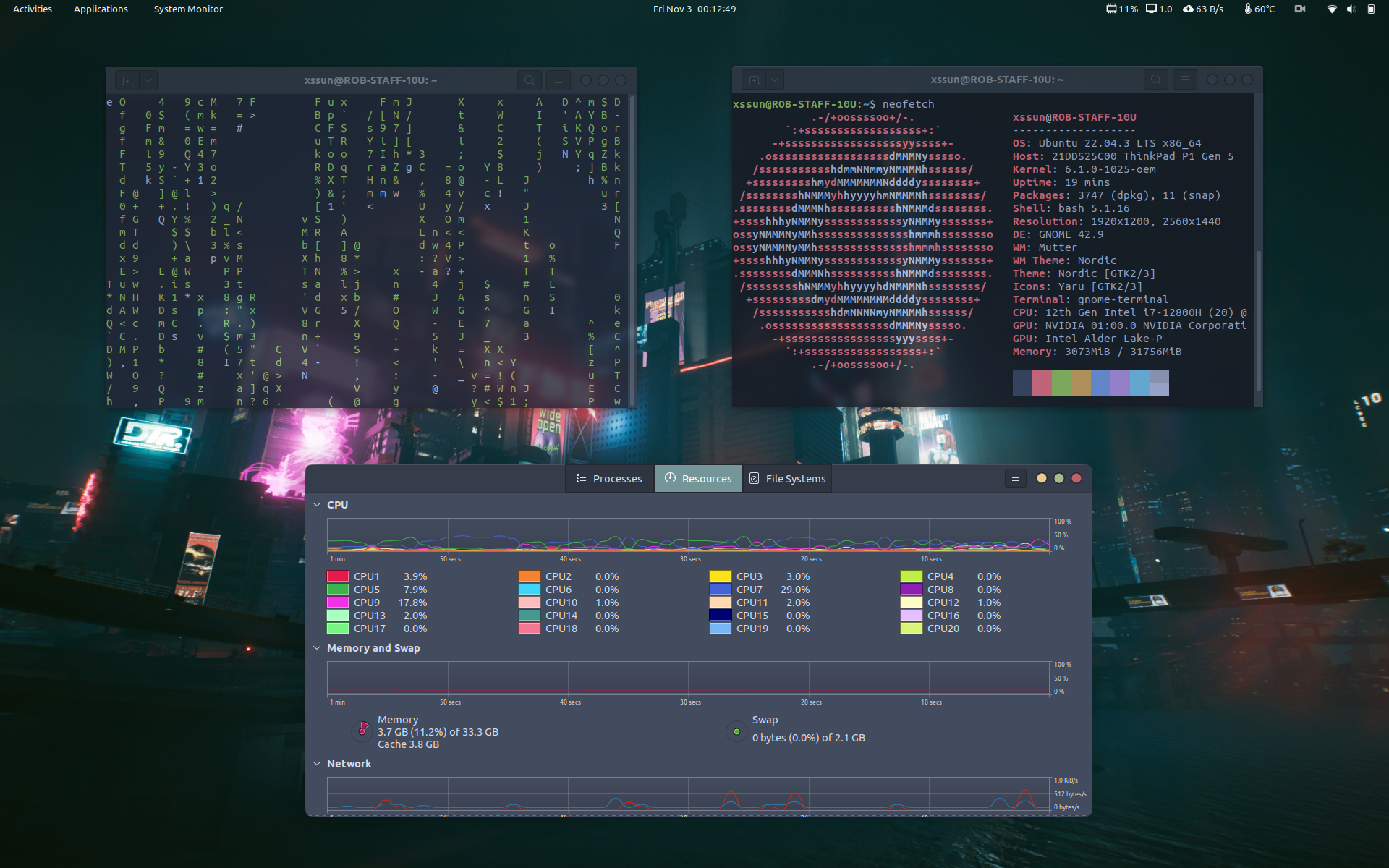
It’s not much, but it’s as stable as I like it.
GTK Theme “Nordic”
For the overall desktop color theme, I am using Nordic.
GNOME Terminal color theme
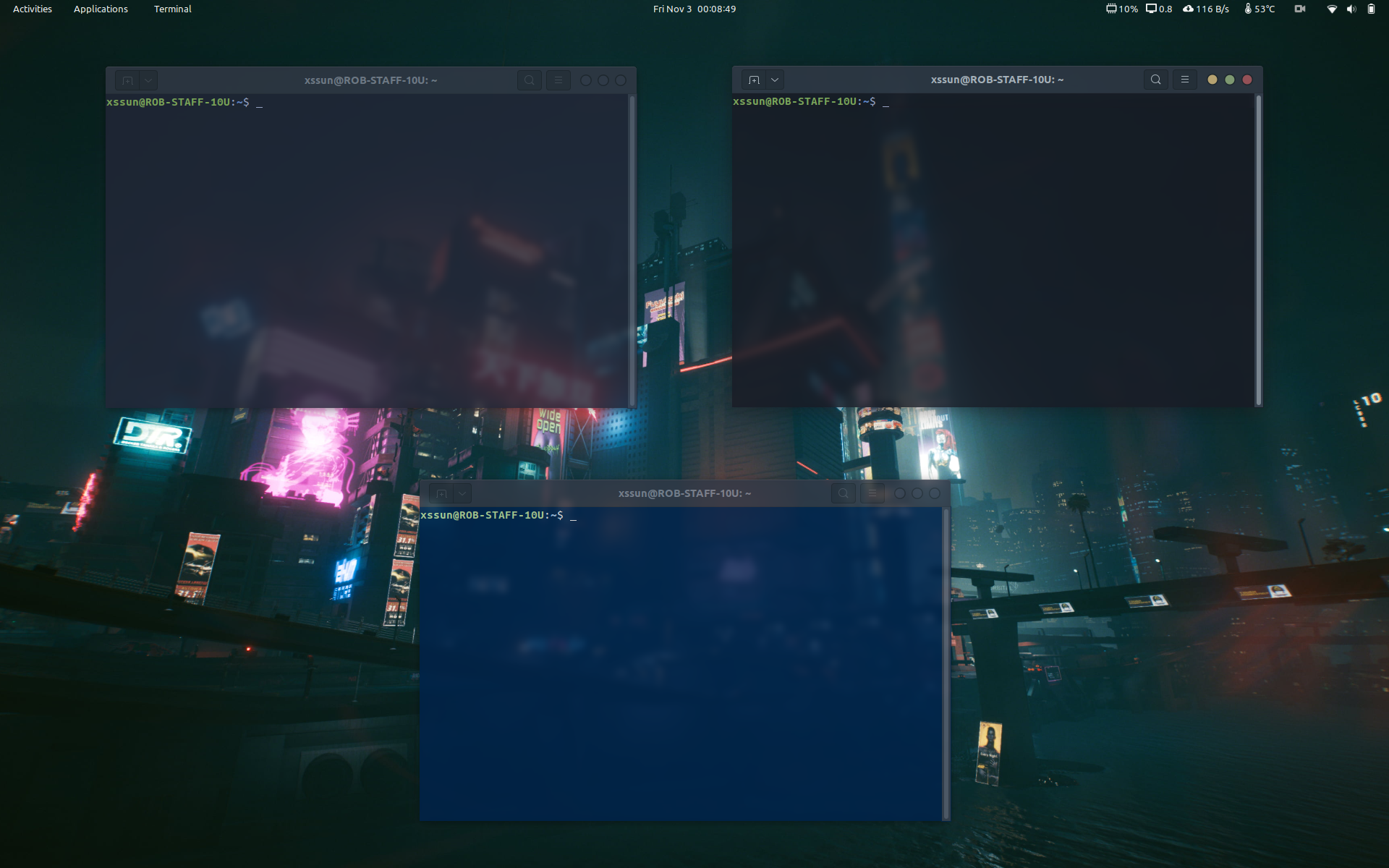
The color themes are downloaded from Gogh. I have Tokyo Night, Tokyo Night Storm, and Tomorrow Night Blue. I think these three suit well with my noridc theme.
GNOME Extentions
- Blur my Shell: I only use this to turn my top bar transparent
- Just Perfection: I use this to modify the top bar
- Rounded Window Corners: It not only can make your window looks rounded, but also add shadow around the edges
- Vitals: It is a top bar status monitor monitoring temp, fan speed, CPU Load, etc
- Other built-in extensions comes with GNOME 42
How to use the zip file downloaded from gnome extension website
- Ensure you have the
gnome-shell-extensionspackage installed.1
sudo apt install gnome-shell-extensions
- Unzip the zip file and looking for a file named
metadata.json. Open this file to find a line that reads"uuid": "some-name@domain.com". The value of uuid is the proper name you should rename the extension folder to. - Move the folder to
~/.local/share/gnome-shell/extensionsand you will find your other gnome extensions are all sitting in there. - Log out and log back in to restart GNOME Shell.
- Now you can use the
Extentionapp to enable/disable extentions.